A daily check-in, without a phone.
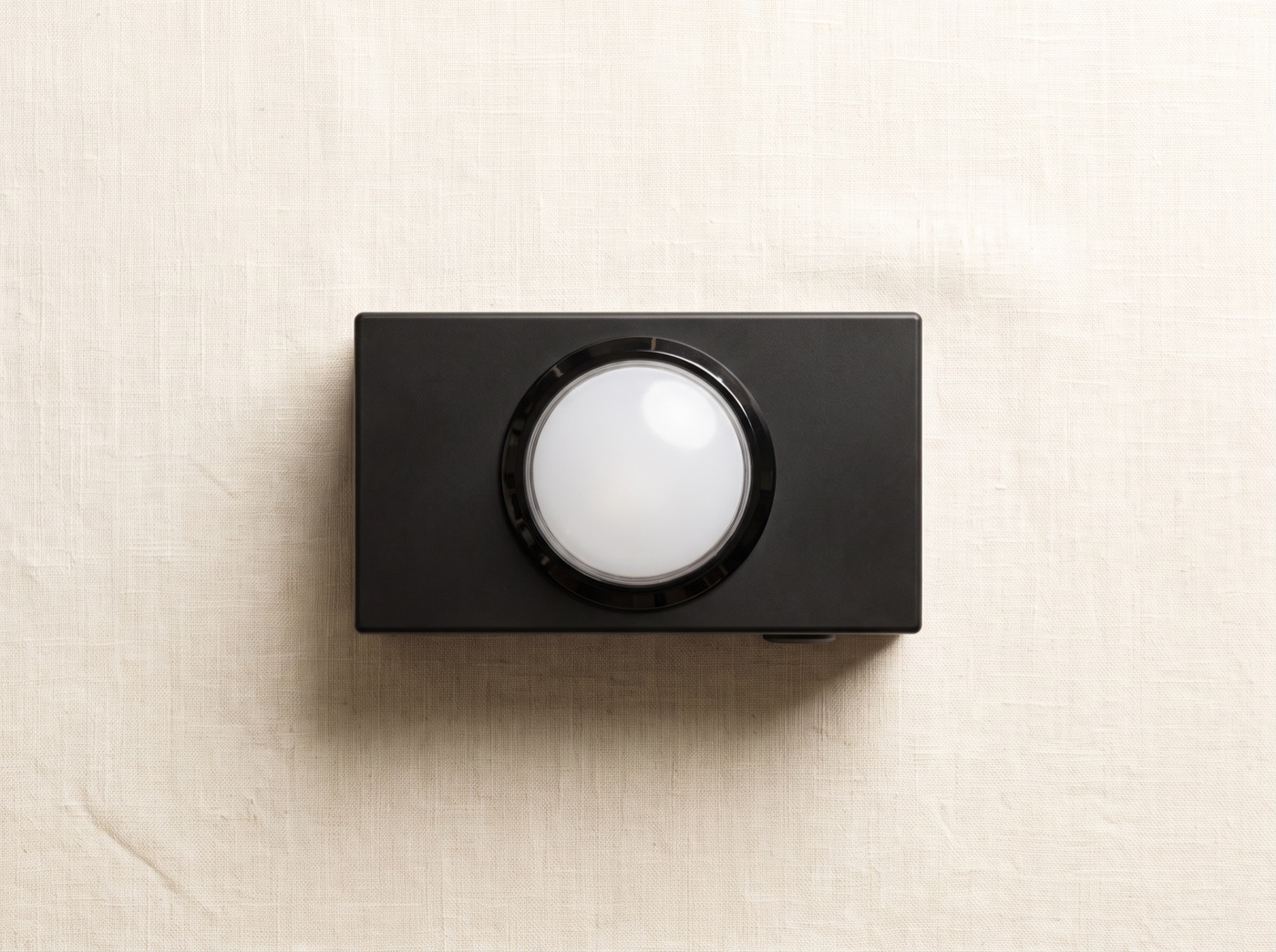
The HelloToday Button is a palm-sized button that sits on a bench or bedside table in your loved one's home. It plugs into the wall and connects to their WiFi. When they press it, the HelloToday app on your phone tells you they've checked in. If they haven't pressed it by the time you've chosen, the app alerts you instead.
It's the same daily check-in HelloToday families already use on a phone, for the people who won't, or can't, use one. Your loved one never needs an app, an account, a password or a screen. You set everything up from your own phone and they just press.
Made for the people apps forgot.
A parent who won't use a phone
Nothing to learn, nothing to charge, nothing to update. If they can press a doorbell, they can use the Button.
Someone living alone
A quiet routine that tells the family everything's fine, without a daily phone call and without wearing anything.
A family spread out
Every press reaches every connected family member's phone, whether they're across town or across the world.
What it's not for
It won't help someone who has fallen and can't reach it, and it doesn't know the difference between “out at bowls” and “not okay”. What it does, reliably, is turn a silent morning into a phone call from someone who loves them, hours sooner than it would otherwise happen.
Four things. You'll need one more.
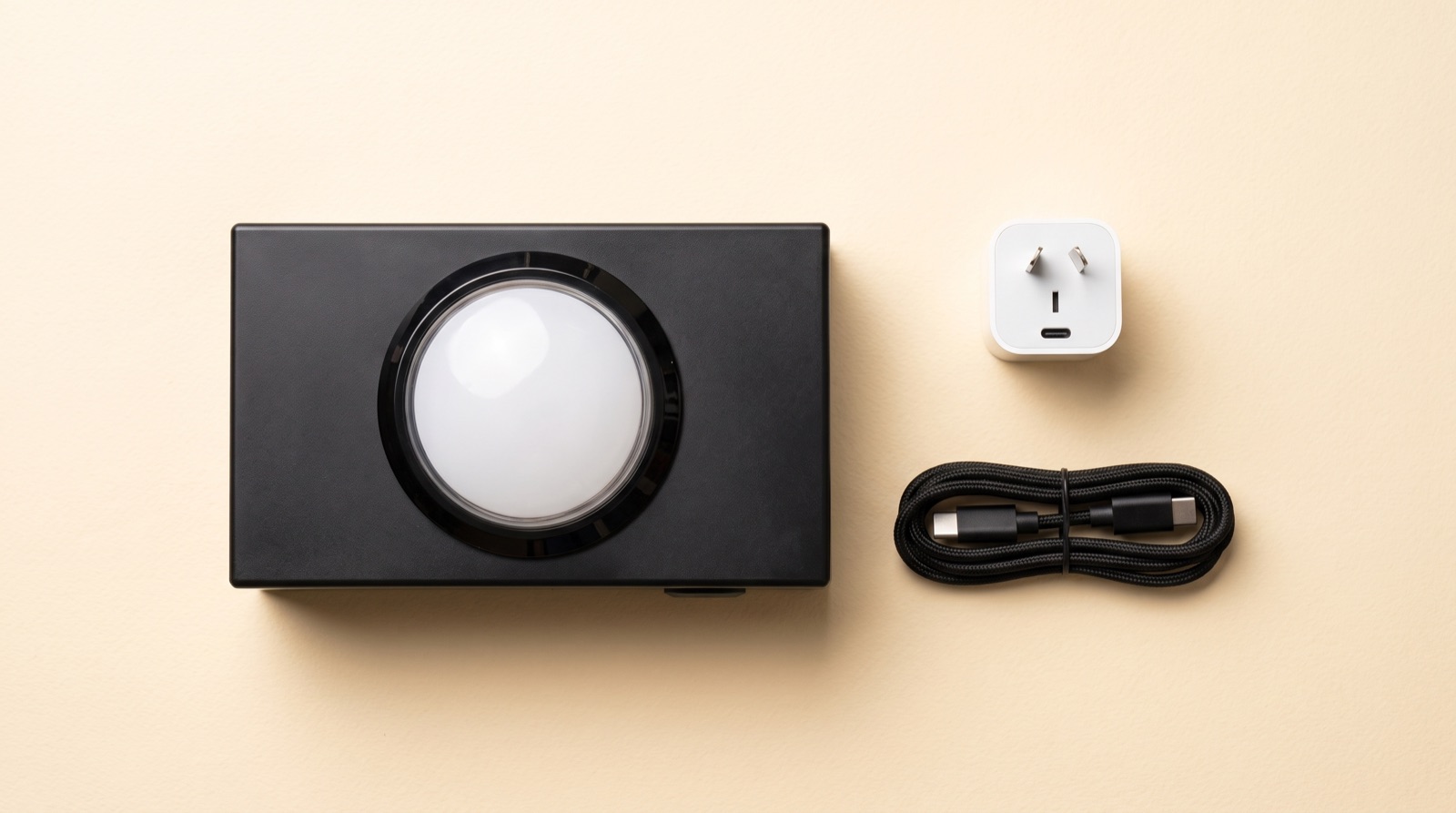
- The Button, with an 8-character pairing code on a sticker underneath. Don't peel it off; you'll need it if the button is ever set up again.
- Plug pack with a USB-C charging cable.
- Quick-start card, the setup in four pictures.
- Adhesive pad, optional, for fixing it to a spot.
The one more thing: their home WiFi name and password. Write it down before you visit. It's the only thing that ever slows setup down.
Set it up at your place, or theirs.
You can do steps 1 to 4 anywhere. Only the WiFi step needs to happen where the button will live, and even that can be done at your place first and repeated at theirs.
Get the app and sign in
Download HelloToday from the App Store or Google Play and create a family account if you don't have one. The app is free. Everything about the button is managed from here.
Plug the button in
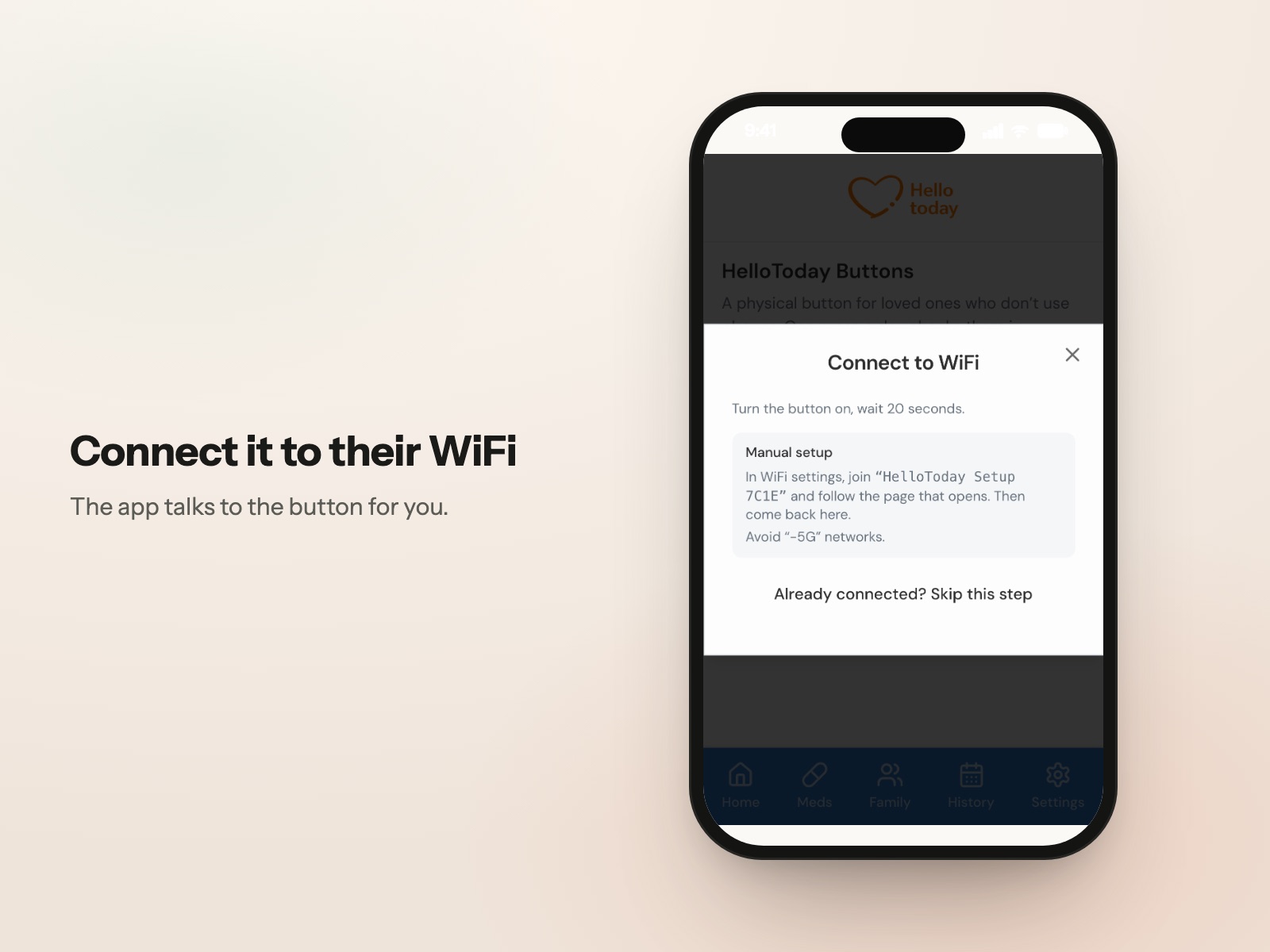
Connect the plug pack and give it 20 seconds. A brand-new button starts its own little WiFi network called HelloToday Setup followed by four letters, so the app can talk to it.
Type in the code
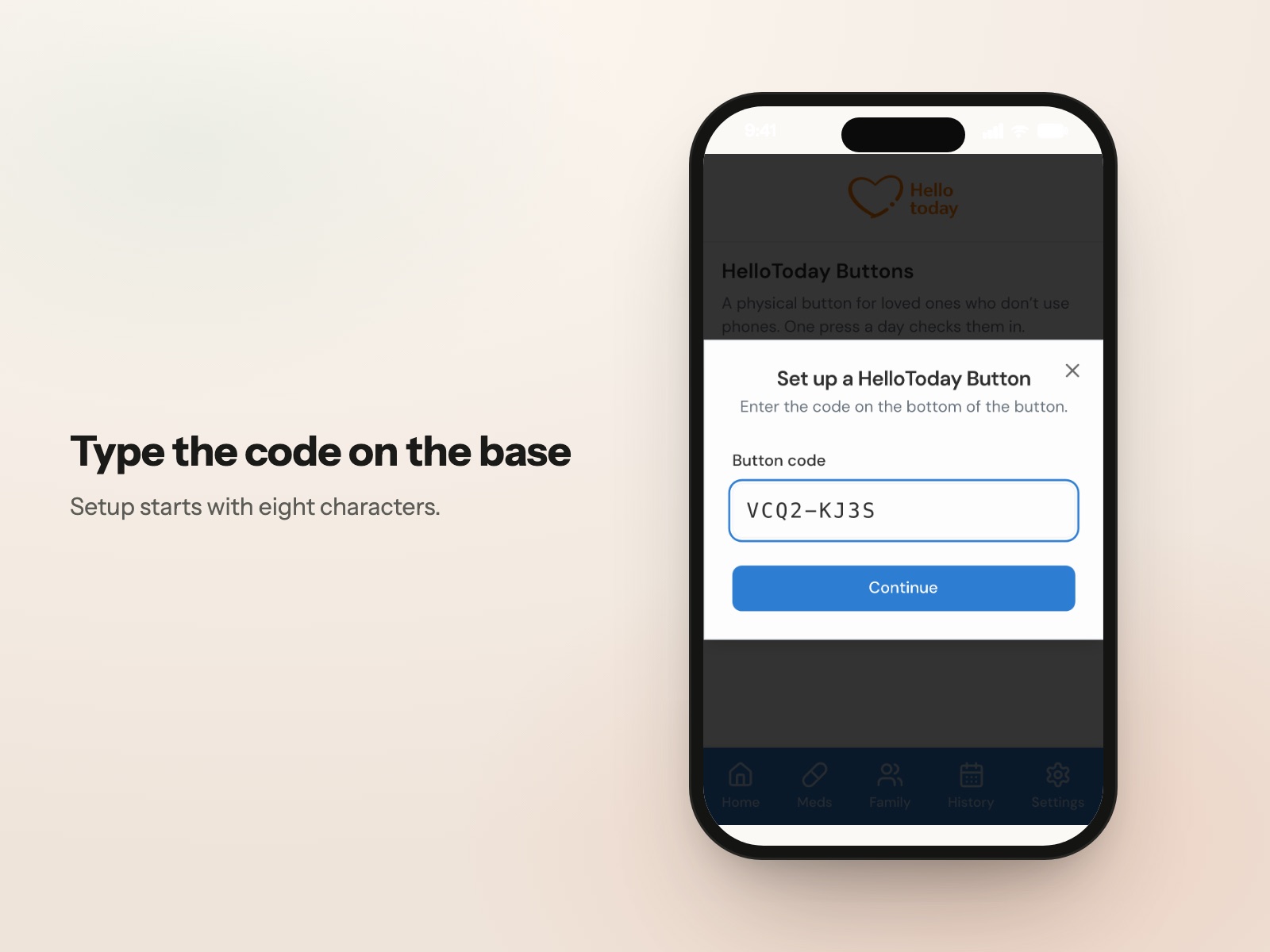
In the app go to Settings → Manage buttons → Set up a button and type the 8-character code from the sticker on the base. The app checks it as you type, so a typo is caught straight away.
Say who it's for
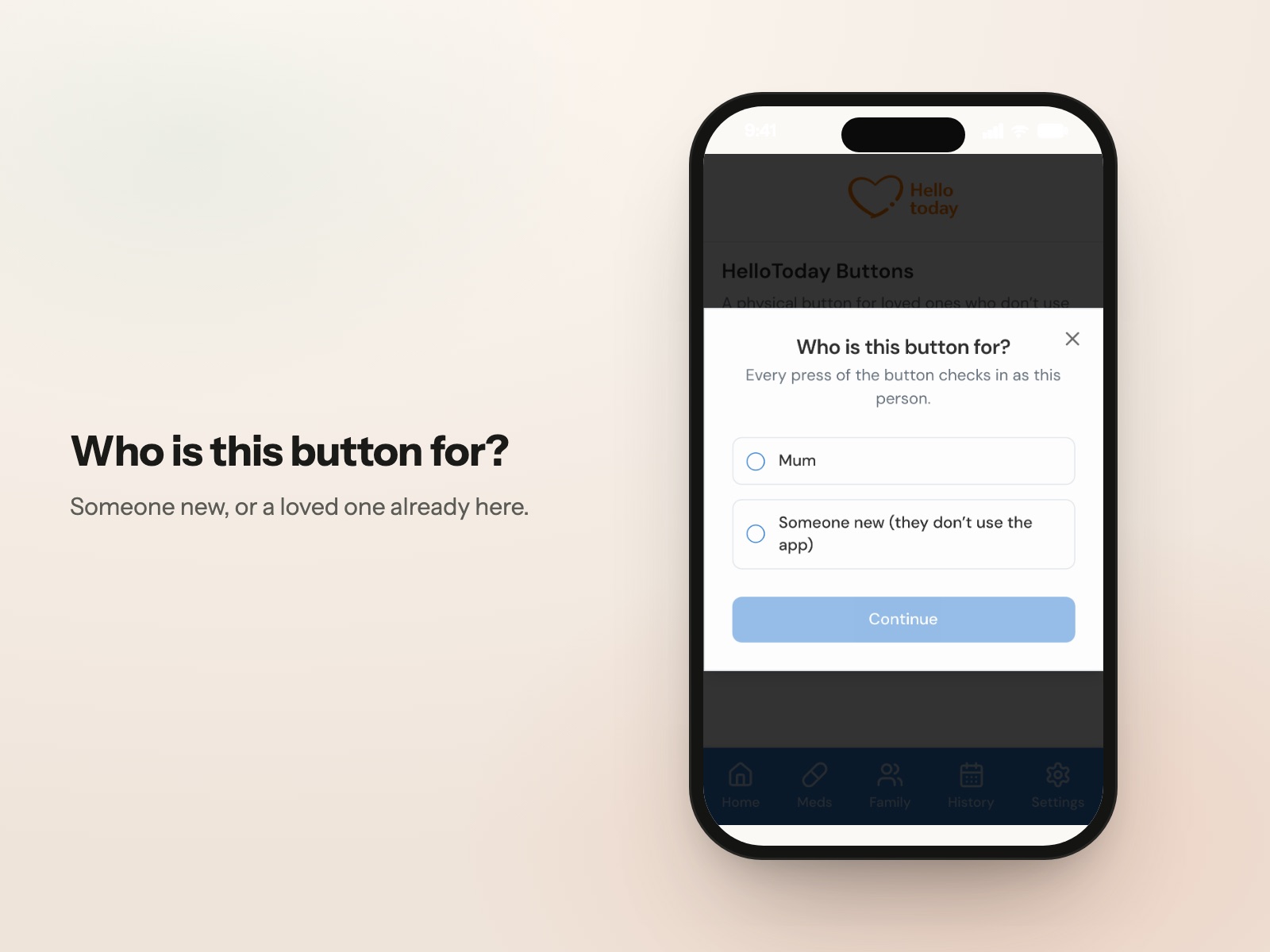
Pick a loved one already in your HelloToday, or choose Someone new and enter their name and the time you'd like to be alerted if there's been no press. Any press during the day counts; the time is just the deadline.
Connect it to their WiFi
The app joins the button's setup network, shows you the WiFi networks the button can see, and asks for the password of theirs. It hands the details to the button, and the button joins the home WiFi. Give it up to 30 seconds.
Press to confirm
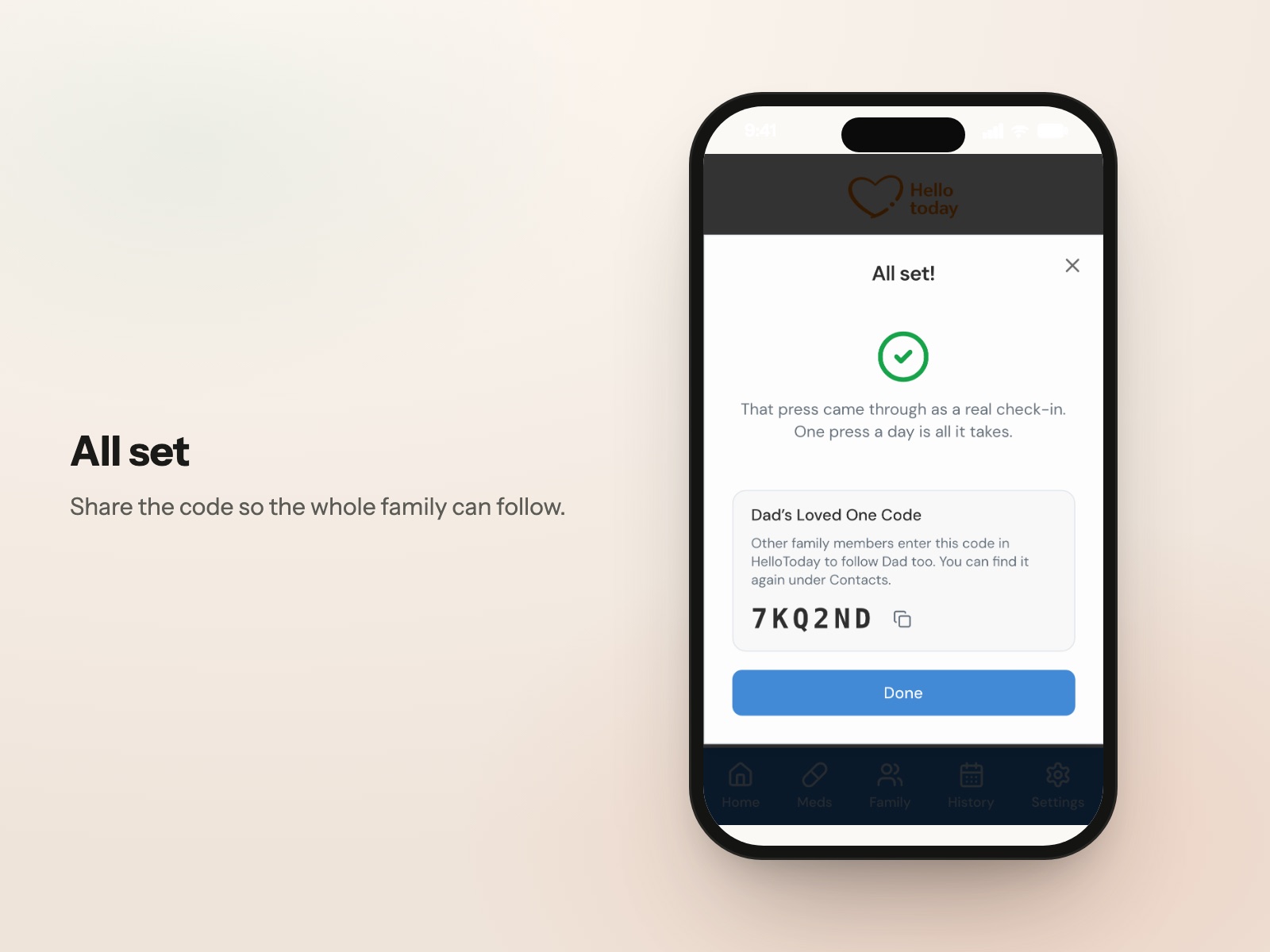
The app asks for one firm press. That press proves the button is in your hands, finishes setup, and counts as the first real check-in. You'll see All set! and, if you added someone new, their code to share with the rest of the family.
Adding the rest of the family
Every family member who wants notifications needs the free app and their own account. Give them your loved one's code, shown on the All set screen and again on your Contacts page next to their name. They enter it under Contacts, and from then on they get the same check-ins and alerts you do.
One press a day. That's it.
Encourage a habit: with the morning cuppa, after the news, whenever suits. The button glows steadily for a few seconds to say the press got through. That's their only job.
What you'll see on your phone
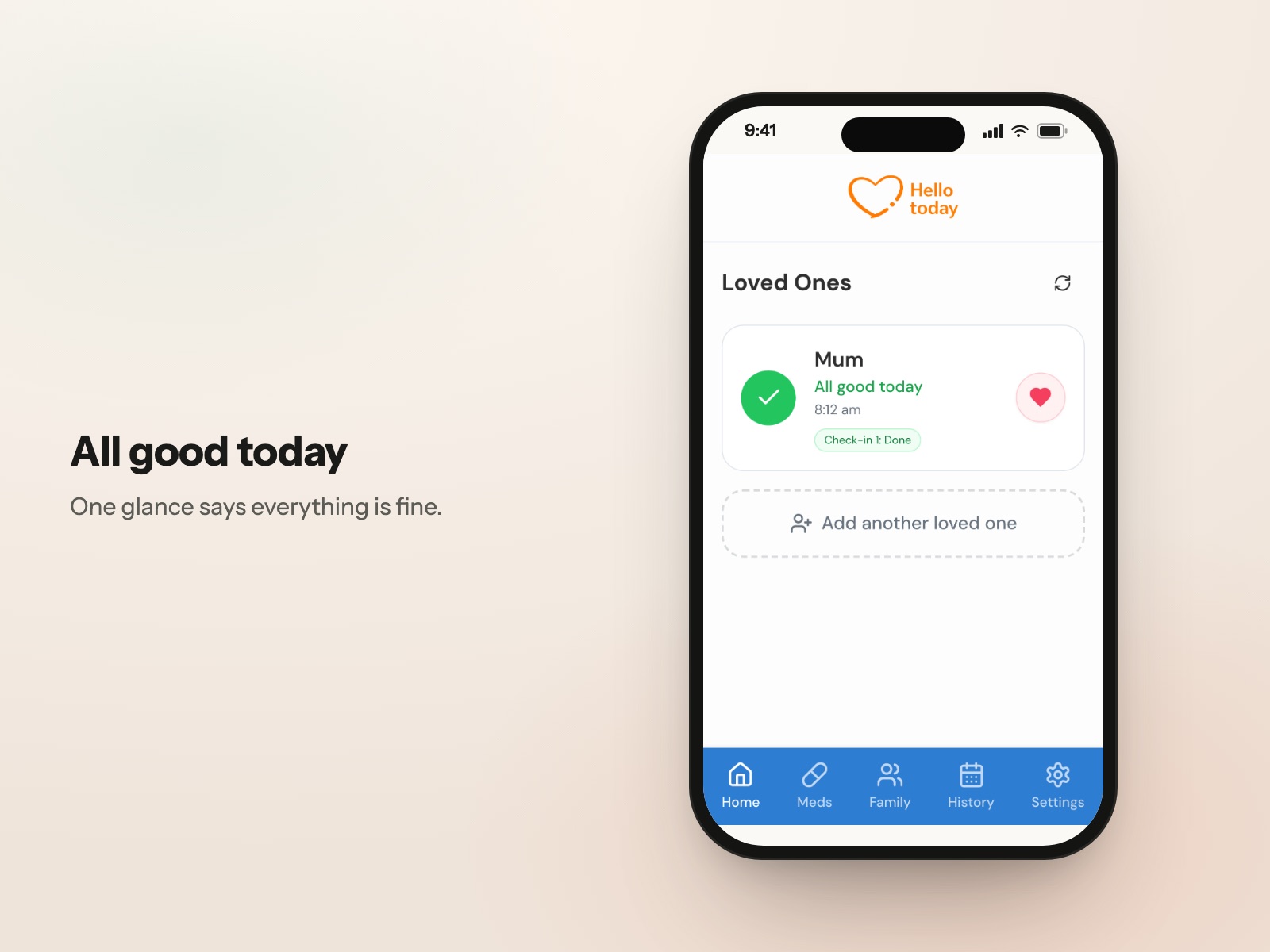
“Mum checked in and is doing okay.” arrives within a couple of seconds of the press. Every connected family member gets it.
“Mum pressed their button again.” if they press a second time. Extra presses are fine. To keep it calm, you'll get at most one of these every 30 minutes, no matter how many times they press.
“Mum hasn't checked in.” at the deadline you chose, if there's been no press that day. On Premium this also comes by SMS.
“Mum's button is offline.” if the button hasn't been heard from for a while, usually because it's been unplugged or the WiFi is down. See troubleshooting.
Changing the deadline
The time you chose during setup isn't fixed. If she tends to press mid-morning, move the deadline later so a normal day never triggers an alert. Open the app, tap her name and change her check-in time. Any press before the deadline counts.
Turning notifications on or off
In Settings → Notifications each family member can switch “notify me when they check in” on or off for themselves. Missed-check-in alerts stay on; they're the point.
The button talks in blinks.
After a press, watch the light for a few seconds. It's the quickest way to tell, over the phone, what's going on.
| Light | Meaning | What to do |
|---|---|---|
Steady glow, 3 seconds |
The press got through. Their check-in is recorded and the family has been told. | Nothing. This is the one you want. |
3 quick blinks |
Got through, and they'd already checked in today. The family gets a “pressed again” nudge, at most every 30 minutes. | Nothing. Extra presses are fine. |
3 slow pulses |
The button isn't connected to WiFi. The press was not recorded. | Is the router on? Has the WiFi password changed? See no WiFi. The button keeps retrying on its own. |
10 fast flashes |
Connected to WiFi, but couldn't reach the internet. The press was not recorded. | Usually the home's internet is down. Check another device on the same WiFi. See no internet. |
5 blinks after a long hold |
The button was held for 10 seconds and has forgotten its WiFi. It's back in setup mode. | Only do this on purpose. Then run WiFi setup again from the app. See new WiFi. |
| No light at all | No power, or the press didn't register. | Check the cable at both ends and the power point. Press firmly in the middle, once. |
When something's not right.
Start with the light. Then find the closest match below. Nearly everything comes down to power, WiFi or the internet at their end, and none of it needs a technician.
The button tried the network and the router turned it away. Nine times out of ten it's the password. Watch for a capital letter, a zero instead of an O, or a space at the end.
- Tap Try again and re-type the password slowly.
- Still no? Connect your own phone to that WiFi with the same password to prove it's right.
- If the network name ends in “5G”, pick the one without it. The button needs 2.4 GHz.
The button probably did connect. The moment it takes the WiFi details it switches networks, and sometimes the phone misses the reply. Trust the light over the message.
- Close the message and open Settings → Manage buttons.
- If the button shows a recent “Last press” or “Last seen”, it's online. You're done.
- If it shows “Never used”, press the button once and check again after 20 seconds.
The setup network only appears when the button has no WiFi to join. If it's already on a network, there's no setup network to find, and that's good news.
- Check Manage buttons. If it's online, skip WiFi setup entirely.
- Brand-new button? Unplug it, wait 10 seconds, plug it back in and wait 20 seconds before searching.
- Still nothing? Hold the button down for 10 seconds until it blinks 5 times. That resets its WiFi and brings the setup network back.
The button can't see or join the home WiFi. It keeps retrying on its own, so a brief router hiccup fixes itself.
- Is the router on, with its lights normal? Turn it off and on if in doubt.
- Has the WiFi been changed? A new router or new password means the button needs WiFi setup again. See new WiFi.
- Is the button far from the router, or behind a thick wall? Try it closer. If that fixes it, find a spot in between.
If it stays off WiFi for 5 minutes, the button opens its setup network again by itself, so you can fix it from the app without touching anything.
The button joined the WiFi but couldn't get through to us. That's nearly always the home's internet connection, not the button.
- On another device in the house, on the same WiFi, try opening a website. If that fails too, it's the internet. Restart the router and wait 2 minutes.
- Was the button set up on a phone hotspot or a guest network? Those come and go. Set it up on the main home WiFi.
- Once the internet is back, the button reconnects by itself within a minute or so. No press needed. You can confirm under Manage buttons.
The button quietly checks in with us throughout the day. If we haven't heard from it in about half an hour, we tell you, so a dead button is never mistaken for a missed check-in.
- Most common: it's been unplugged, often to use the power point for a vacuum cleaner or a charger. Ask.
- Next: the internet or WiFi at their place is down. It comes back when they do.
- When the button is back, the alert clears on its own. There's nothing to reset.
Check the times. The alert goes out at the deadline you chose. If they pressed after it, you'll have received the alert first and the “checked in” notification second. Nothing's wrong; the deadline is just too early for their routine.
- Open the app, tap their name, and move the check-in time later.
- If they pressed before the deadline and you still got the alert, check the light next time they press. Slow pulses or fast flashes mean the press never got through.
The press was recorded; it's the notification that didn't make it to your phone.
- In HelloToday, Settings → Notifications: is “notify me when they check in” on?
- In your phone's own Settings, is HelloToday allowed to send notifications? Is Do Not Disturb or Focus on?
- Was it a second press within 30 minutes of the first? Those are deliberately quiet.
- Open the app and look at their check-in history. If today shows a tick, everything worked and it's just the notification.
They need to be connected to your loved one in their own app, with notifications on.
- Have they entered your loved one's code under Contacts in their app? Find the code next to the name on your Contacts page.
- Once connected, “notify me when they check in” is switched on for them automatically. They can check it under Settings → Notifications.
- On the free plan a family account can follow one loved one. Premium raises that to ten.
- Check the cable is firmly in at the button and at the plug pack, and the power point is switched on.
- Try the plug pack in a different power point. Try a different USB-C cable if you have one.
- Press once, firmly, in the centre of the dome. A light tap on the edge can miss.
- Still nothing? Unplug for 10 seconds and plug back in. If there's no light after 30 seconds, get in touch and we'll replace it.
In Settings → Manage buttons, tap the button and choose Remove. It stops checking in and its code can be used to set it up again, for the same person or someone new. Your loved one's check-in history is always kept.
Before it goes to a new home, hold it for 10 seconds until it blinks 5 times so it forgets the old WiFi.
When the WiFi changes.
A new router, a new password, a move into a unit or a village: the button just needs to be told the new WiFi. The app does it in a minute, and there's nothing to re-order.
- Plug the button in at the new place and wait. After 5 minutes without its old WiFi, it opens its setup network on its own. In a hurry? Hold it for 10 seconds until it blinks 5 times.
- In the app, Settings → Manage buttons, tap the button and choose Reconnect WiFi.
- Pick the new network, enter the password, and press the button once when asked.
Everything else, the person it belongs to, the family connected, the check-in time and the history, stays exactly as it was.
Looking after it.
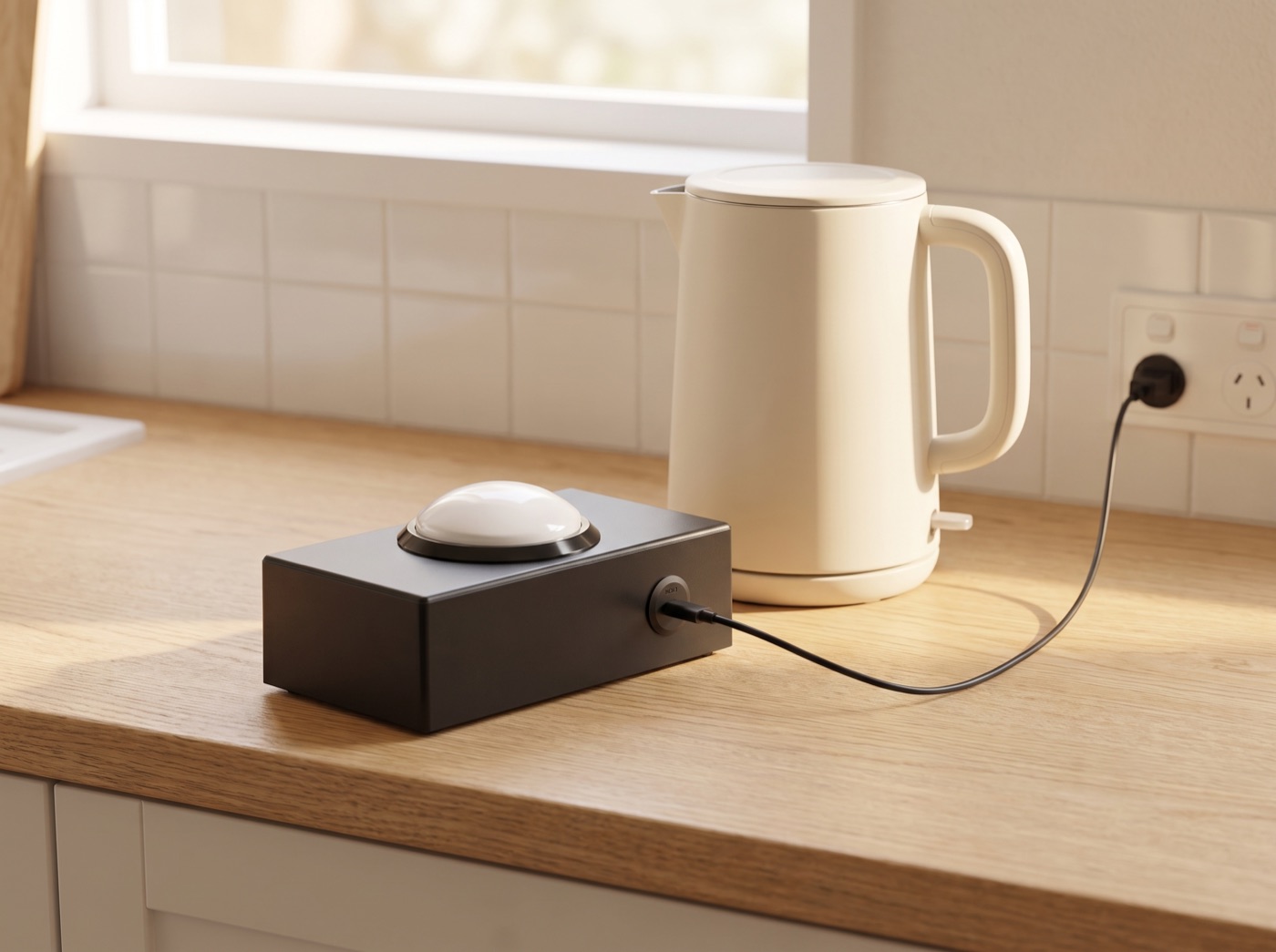
Where to put it. Somewhere they pass every morning: the kitchen bench, the table by their chair, the bedside. Within reach of a power point, and not in a spot where the cable is a trip hazard. The adhesive pad stops it wandering.
Keep it plugged in. The button has no battery on purpose. If it's unplugged for the vacuum cleaner, you'll get an offline alert until it's back.
Cleaning. Wipe with a dry or slightly damp cloth. No sprays, no soaking. It's not waterproof.
Indoors only. Room temperature, out of direct sun and away from the stove.
Use the supplied plug pack. Any standard USB-C phone charger will work in a pinch, but the supplied one is the right one.
The details.
| Size | Palm-sized. Sits flat on a bench or bedside table. |
|---|---|
| Button | Large dome switch, palm-pressable |
| Power | Mains, via the supplied USB-C plug pack. Uses less than a night light. |
| WiFi | 2.4 GHz, WPA2. Not compatible with 5 GHz-only or WPA3-only networks. |
| Heartbeat | Checks in with us throughout the day. Offline alert after about 30 minutes of silence. |
| Security | Each button has its own secret key. Only the family connected to the person can see or manage it. |
| App | HelloToday for iPhone and Android, free |
| Warranty | 12 months, plus your rights under the Australian Consumer Law |
Still stuck? Talk to a person.
Email us with the code from the base of the button and a sentence about what you're seeing. We can tell from our end whether the button is online, and when it last heard a press.